Google Business Profile for Restaurants: A Checklist
By IndieAM ·
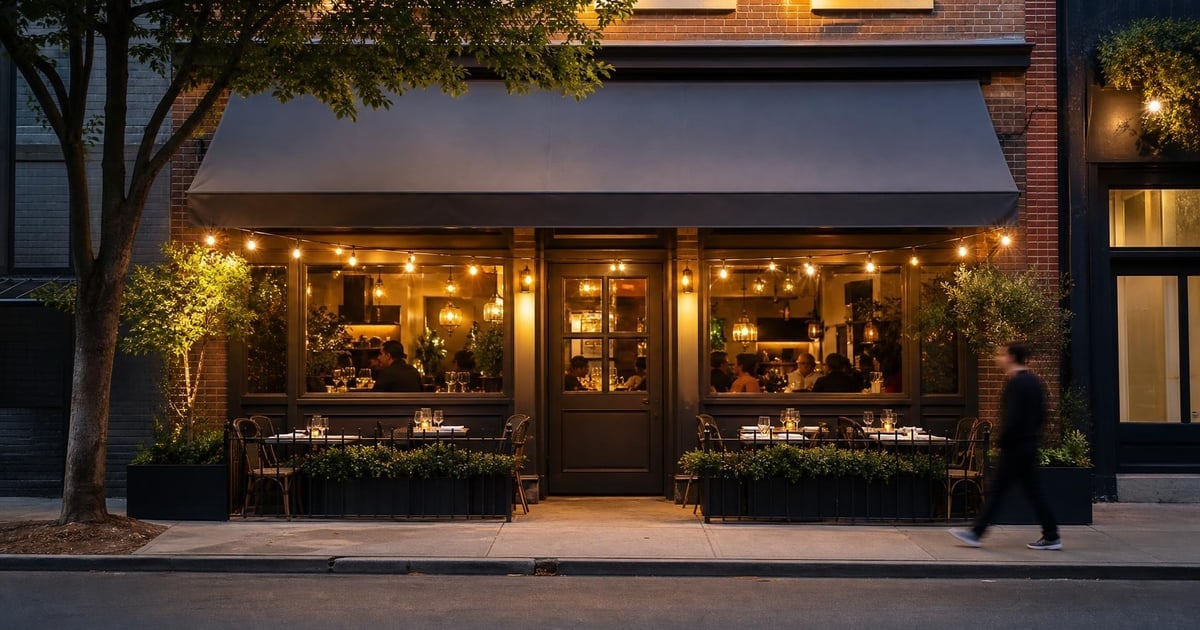
When someone searches for "restaurants near me" or "pizza" plus a neighborhood, they choose from the few places Google shows, often from the photos, the menu and the reviews alone. Your Google Business Profile is your restaurant's shop window there, and for many diners it comes before your website or Instagram. Here's a checklist to make it complete and current, in about an hour.
If you don't have a profile yet, create one and verify it first. Your photos and posts only appear once it's verified.
How does Google decide which restaurants to show?
Google says local results are based on three things:
- Relevance: how well your profile matches what someone searched.
- Distance: how far you are from them.
- Prominence: how well known you are, including the number and rating of your reviews.
Google also says there's no way to pay for a better local ranking. Relevance and prominence are mostly in your hands, and that's what this checklist covers.
1. Use your real name and the right category
Use your restaurant's name exactly as it appears on your door. Google's guidelines say unnecessary information in a business name isn't permitted, so "Ember & Vine" is fine, and "Ember & Vine Best Pizza Downtown" isn't.
For the category, Google suggests choosing the fewest that describe your core business, as specific as possible. "Italian restaurant" or "Pizza restaurant" says more than "Restaurant". Add a second category only if it's a real part of what you are, such as a bar.
2. Add your menu
Your menu is often what decides it. Google's menu editor lets food and drink businesses list dishes, descriptions and prices, grouped into sections. You can also upload a photo or PDF of the menu.
- Use the editor, not just a photo, so the dishes can be read on a phone.
- If you upload a photo, Google suggests one clear, well-lit photo that fits the whole menu on one page.
- Check where your menu comes from. Google may pick up menus from your website or other providers. If it shows several, you can choose which one to use, and edit or delete wrong items.
- Update it when the menu changes, especially prices and seasonal dishes.
If you're part of a chain with 20 or more locations, FDA rules require calorie information on menus. Most independent restaurants aren't covered.
3. Add bookings, if you take them
Google lets restaurants add bookings in two ways:
- Through a booking provider: sign up with a provider that works with Google, and it appears on your profile within a week. Restaurants can also add a waitlist this way. Check whether your provider charges for bookings made through Google.
- Your own booking link: add the link to your reservation page.
If you don't take bookings, say so clearly in your description, and that walk-ins are welcome.
4. Keep hours right, especially on holidays
Wrong hours lose diners for good. Set your regular hours, and add special hours for holidays, private events that close the restaurant, and any night you open late or close early. If the kitchen closes before the bar, say so in your description.
5. Add photos of your real food and room
Photos are where a restaurant wins or loses on Google. Google's own tips suggest at least three each of:
- The outside, from each direction people approach, so they can find you.
- The inside, showing what it feels like to sit there.
- Food and drink, your popular dishes, evenly lit.
- Your team at work.
Google asks for photos that are in focus, well lit and "represent reality," without heavy filters or AI. Add new photos every month, especially when the menu changes, so the newest ones match what people will be served. Diners add photos too, so your own good ones give people a fair picture.
6. Fill in the details people check
Go through every section of your profile and fill in what applies: a short description in your own words, price range, dine-in, takeout and delivery, outdoor seating, accessibility, parking, whether you're good for groups or children. Each one answers a question someone would otherwise have to call about.
7. Ask for reviews, and reply to them
- Ask after a good meal, with a small card or QR code with the bill. Google suggests sharing a link or a QR code.
- Never offer anything in return. Google prohibits discounts or free food in exchange for reviews, or for changing or removing one.
- Reply briefly and personally, using the reviewer's name and what they mentioned.
- Reply to a bad review calmly: acknowledge it, say what you can do, and take the details offline.
- Never try to bury a bad review. Since 2024 the FTC's rule on reviews bans threats and intimidation to remove negative reviews, as well as fake reviews.
8. Post updates
You can post updates, offers and events on your profile, and they can show on Search and Maps. For a restaurant, good posts are:
- this season's new dishes,
- your weeknight special or happy hour,
- holiday hours and holiday menus,
- private dining and holiday parties,
- a special night, like a wine dinner.
About once a week is a sensible pace. Our guide to Google Business Profile posts covers the post types and rules. For weeknight ideas worth posting, see how to fill a restaurant on slow weeknights.
A ten-minute weekly check
- Reply to new reviews.
- Check the menu and prices still match.
- Check this week's and next month's hours.
- Add two or three new photos.
- Post one update.
If you'd rather not write the posts yourself
The setup is a one-off. The weekly posts are the part that slips during service. IndieAM, which we make, writes Google Business Profile updates alongside your Instagram, Facebook and TikTok posts, all in your voice and from the facts you give it, so they never state a price or deal you didn't set. Your social posts publish themselves once you approve them. Google Business Profile updates come ready to copy, since IndieAM can't publish to Google yet, and a daily email tells you what's due. It doesn't answer reviews or take reservations. Here's how it works for restaurants.
For post ideas beyond Google, see 40 Instagram post ideas for restaurants.